Education Series
Setting Up
Lesson 2 of 5
Lesson 2
Opening Your M1 Account
Infographics
Lesson Text
What This Lesson Covers
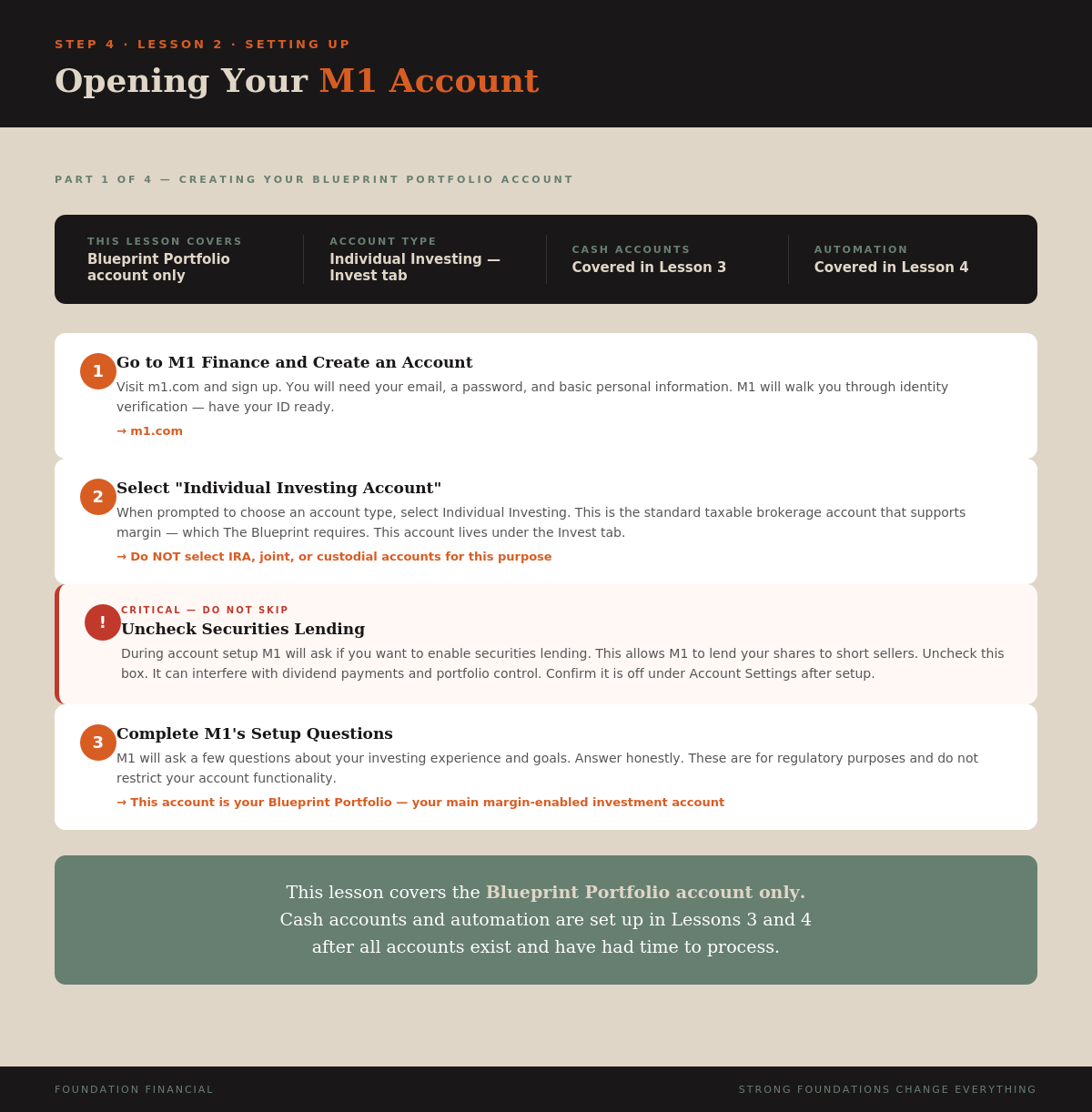
This lesson is focused on one thing: getting your Blueprint Portfolio account open, your pie built, and margin enabled. Cash accounts and automation come in Lessons 3 and 4 — after all accounts exist and have had time to process.
Step 1: Create Your M1 Finance Account
Go to m1.com and sign up. You will need your email, a password, and basic personal information. M1 will walk you through identity verification — have your ID ready.
When prompted to choose an account type, select Individual Investing. This is the standard taxable brokerage account that supports margin. Do not select an IRA, joint, or custodial account for this purpose.
Step 2: Uncheck Securities Lending
During account setup M1 will ask if you want to enable securities lending. This allows M1 to lend your shares to short sellers.
Uncheck this box. Do not enable it. Securities lending can interfere with dividend payments and removes some control over your holdings. After setup, confirm it is off under Account Settings.
Step 3: Build Your Blueprint Portfolio Pie
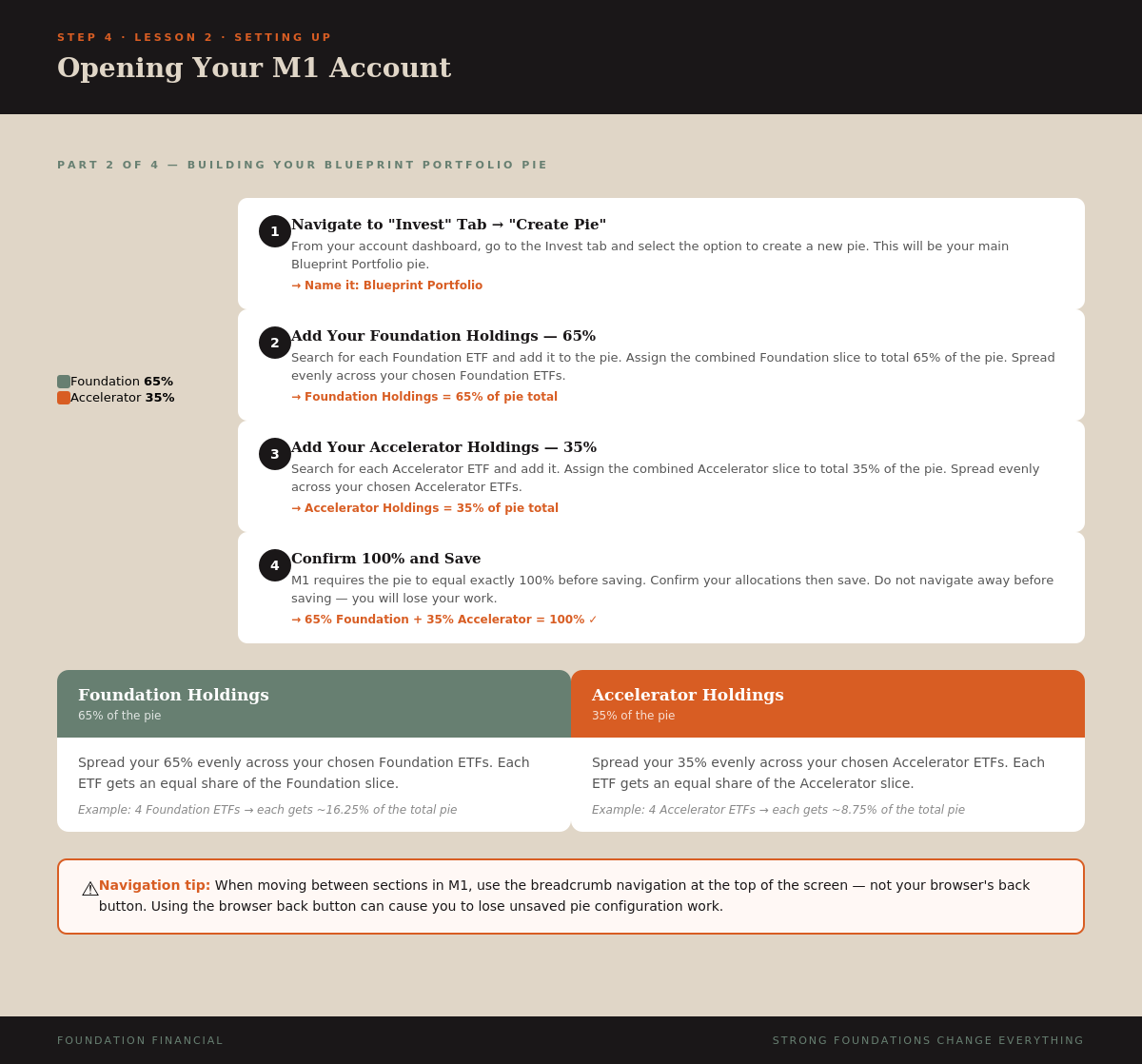
Once your account is created, navigate to the Invest tab and create a new pie. Name it Blueprint Portfolio.
Add your Foundation Holdings ETFs and assign them a combined total of 65% of the pie. Add your Accelerator Holdings ETFs and assign them a combined total of 35%.
Foundation Holdings = 65% of the pie
Accelerator Holdings = 35% of the pie
Total = 100%
Spread each group evenly across its ETFs. Confirm the pie totals exactly 100% and save.
Do not use your browser's back button inside M1. Use the breadcrumb navigation at the top of the screen. The browser back button can cause you to lose unsaved work.
Step 4: Enable Margin on Your Blueprint Portfolio
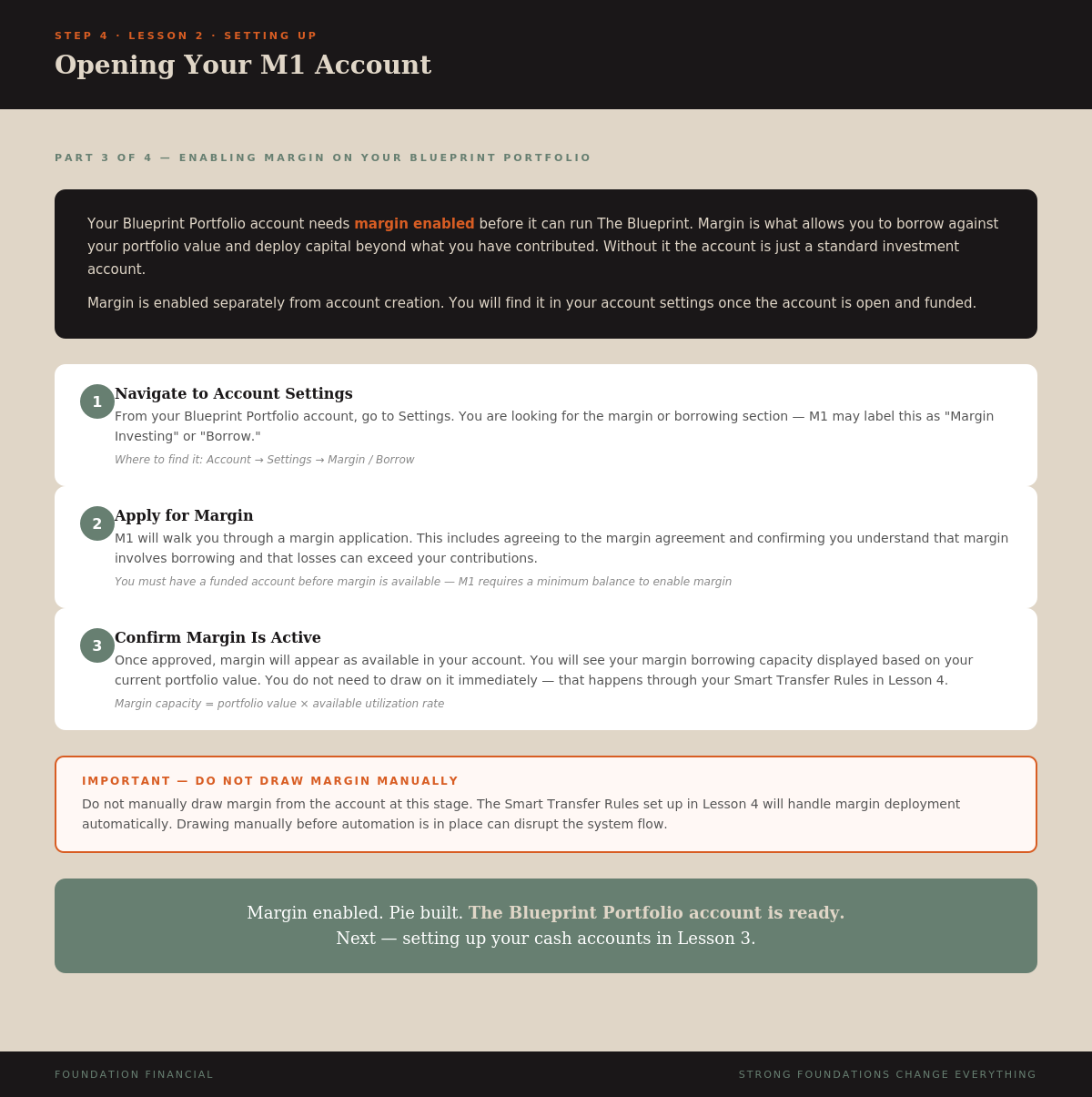
Your Blueprint Portfolio needs margin enabled before it can run The Blueprint. Margin allows you to borrow against your portfolio value and deploy more capital than you have contributed on your own.
Navigate to Account Settings and find the Margin or Borrow section. M1 will walk you through the margin application — read and agree to the margin agreement, confirm you understand the risks, and submit.
Once approved, your margin borrowing capacity will appear in the account based on your current portfolio value.
Do not draw margin manually at this stage. Margin deployment is handled through the Smart Transfer Rules set up in Lesson 4. Drawing it manually before automation is in place can disrupt the system flow.
Your Lesson 2 Checklist
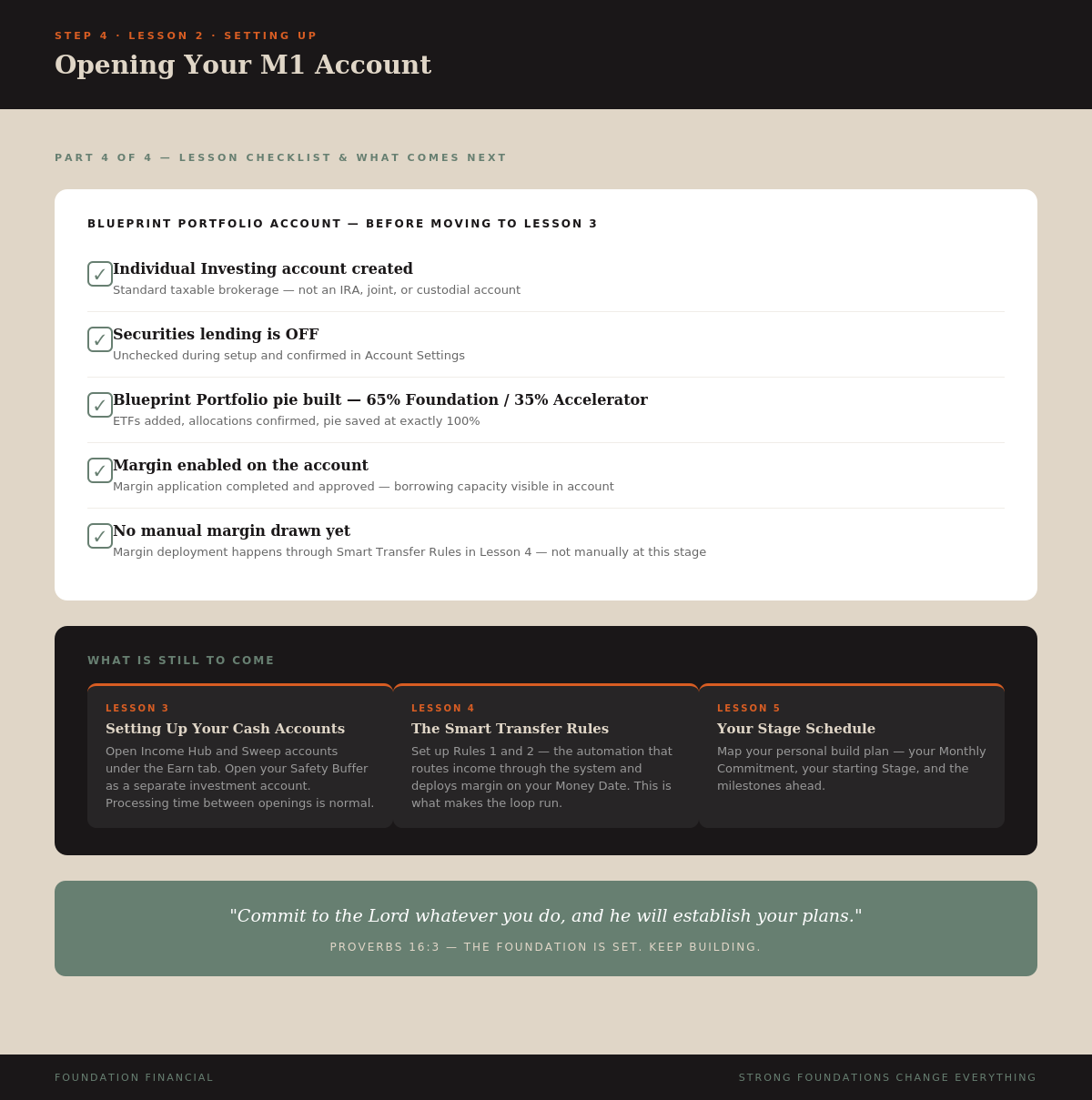
Do not move to Lesson 3 until every item below is confirmed:
- Individual Investing account created — not an IRA or joint account
- Securities lending is OFF — confirmed in Account Settings
- Blueprint Portfolio pie built — 65% Foundation / 35% Accelerator
- Pie totals exactly 100% and is saved
- Margin enabled on the account
- No manual margin drawn yet
Key Takeaway
Your Blueprint Portfolio is an Individual Investing account with a 65/35 Foundation-to-Accelerator pie and margin enabled. Securities lending stays off. Do not draw margin manually — automation handles that in Lesson 4. Get the account confirmed before moving on.